
By Michael Hayes
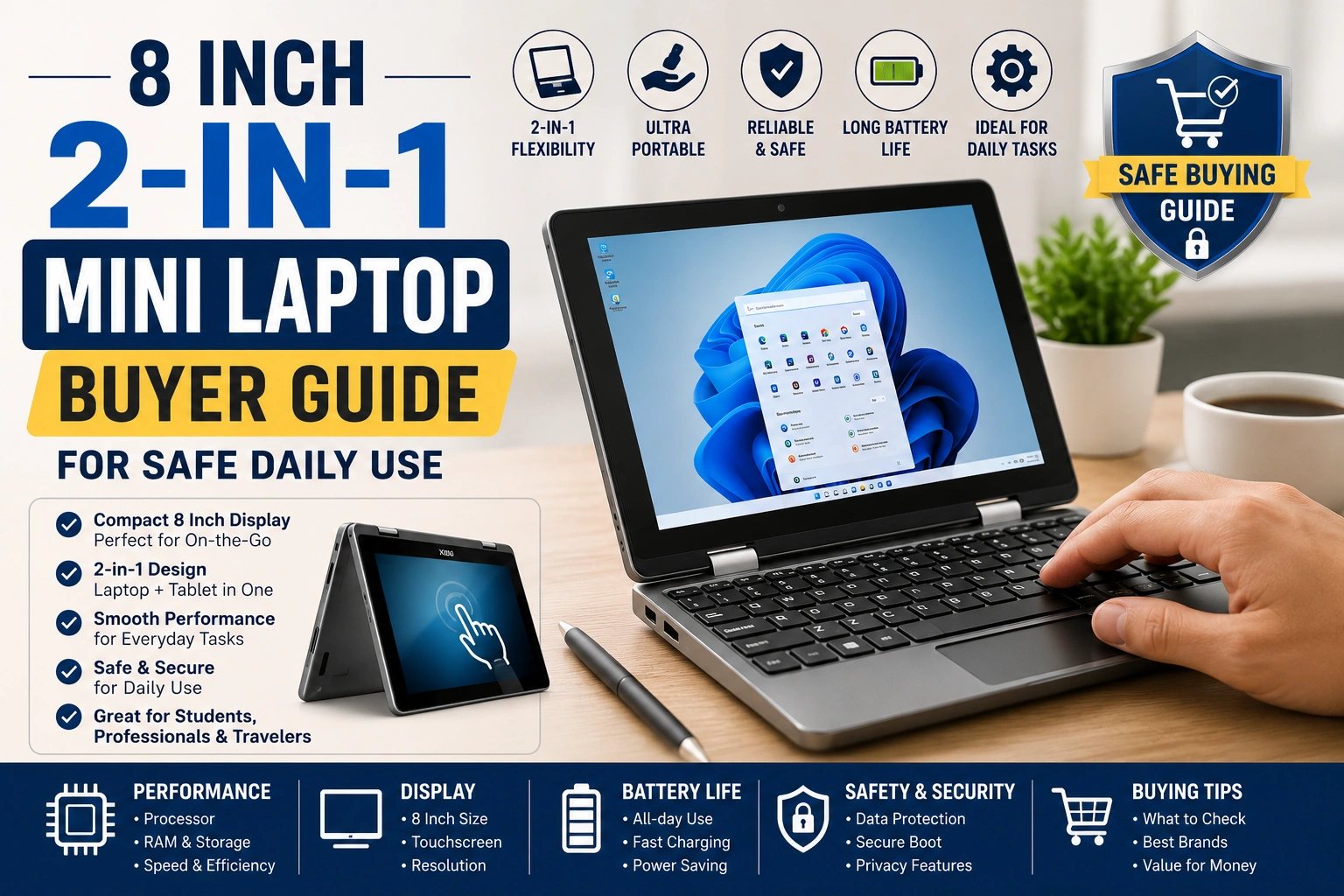
Quick Answer: An 8 inch 2-in-1 mini laptop is best for travel, notes, email, light web work, and emergency Windows access. It is not ideal for long typing, heavy multitasking, advanced creative work, or buyers who need a large screen every day.
Buying an 8 inch 2-in-1 mini laptop is different from buying a normal notebook. The small size is the main benefit, but it is also the main limitation. You are choosing pocket-style portability, a tiny keyboard, a compact touchscreen, and laptop-style software in one small device.
This guide focuses on real buyer decisions: processor, RAM, storage, display, battery expectations, keyboard comfort, ports, warranty, safe charging, and daily use. It avoids hype and helps you decide whether this tiny convertible form factor fits your routine.
Mini laptop buying 2-in-1 touchscreen Windows travel PC Buyer safetyTrust and safety note: This article is for general educational and buyer-information purposes only. It does not guarantee performance, compatibility, durability, repair results, or product availability. It does not replace advice from a qualified technician, manufacturer, seller, or warranty provider. Readers should seek professional help for severe, worsening, unusual, persistent, overheating, battery, charging, or electrical issues.
What an 8 inch 2-in-1 mini laptop Is Actually For
A tiny convertible laptop is a niche computer. It usually targets people who want Windows apps, a physical keyboard, touchscreen input, and extreme portability in a single device. It can be useful for travel, field notes, light office tasks, quick remote access, inventory checks, simple writing, and emergency work when a full-size laptop is too large.
The size matters because an 8-inch screen changes everything. Text is smaller, the keyboard is tighter, the palm rest is minimal, and multitasking is harder. A beginner should check whether they can read websites, type a full email, and use their main apps without squinting. A more experienced buyer should check CPU generation, RAM type, SSD configuration, display resolution, USB-C behavior, BIOS or driver support, and warranty path.
The safe rule: choose an 8 inch 2-in-1 mini laptop if portability is more important than comfort. Avoid it as your only computer if you write for hours, use large spreadsheets, depend on color-accurate creative work, or need strong cooling for sustained performance.
Comparison Table: Mini Convertible vs Regular Laptop
Note: Many tiny Windows convertibles use mobile-class processors and compact cooling. Before buying, compare the exact configuration against Microsoft’s Windows 11 specifications, the seller listing, and the manufacturer support page.
How to Choose the Right Tiny 2-in-1
The best buying process starts with use case, not specs. Ask what job the computer must do. A travel writer needs keyboard comfort and battery confidence. A field worker may care more about ports and quick access. A student may need webcam quality, cloud apps, and return policy. A hobbyist may care about Linux tests, BIOS access, or external display behavior, but those details should be checked carefully before purchase.
What can go wrong if you ignore this? You may buy a device that looks powerful on paper but feels uncomfortable after 20 minutes. You may also discover that the USB-C port cannot support the display, charging, or hub behavior you expected. Beginners should read the full product title, model number, RAM, storage, screen resolution, and seller warranty. Experienced buyers should look for chipset, storage type, thermal design, driver support, and whether accessories are included or only supported.
The buying flow below keeps the decision practical and avoids buying accessories before the main device is proven useful.
Travel notes, email, web apps, remote desktop, light office work, or emergency backup computer.
Keyboard size, screen text, hinge angle, weight, and whether tablet mode will actually help.
Processor, RAM, SSD, ports, Wi-Fi, camera, charging, and Windows version.
Return window, warranty, support route, charger details, and regional model differences.
Run your real apps and files before travel, class, or client work.
If the device fails at step one or two, better specs will not fix the core problem. A pocket-size laptop must fit the task and the body, not just the product listing.
Product, Tool, and Specification Fit Table
Step-by-Step Buying and Setup Process
Before buying an 8 inch 2-in-1 mini laptop, treat it like a specialized tool. It may be excellent as a portable second computer, but risky as a blind replacement for a full laptop. The following process works for buyers, students, travelers, and anyone comparing pocket PCs.
List your real tasks. Include typing, browser tabs, office files, video calls, cloud storage, PDFs, remote desktop, and any special Windows software. If one required app needs a larger screen, do not ignore that.
Check the exact model and configuration. Product titles can look similar while RAM, storage, charger, stylus support, processor, or warranty terms differ. Save the model number before ordering.
Review the seller and return policy. The small keyboard and screen are personal fit issues. Buy from a seller that clearly explains returns, warranty, charger details, and who handles support.
Test comfort before the return window ends. Type a full page, join a video call, use your main web apps, and carry it in your normal bag. Do not judge only by first impressions.
Back up files before major changes. Before resets, Windows reinstall attempts, storage moves, or driver changes, copy important files to cloud storage or another trusted location.
Decide its role. Use it as a primary device only if it handles your real routine comfortably. For many buyers, it is safer as a travel laptop, field device, or backup machine.
Tip: If you can test one in person, type a full paragraph and open a small spreadsheet. I usually notice that keyboard comfort and screen scaling reveal more than spec sheets for this category.
Performance, Battery, and Port Expectations
Small convertible laptops often use efficient processors rather than high-power chips. That can support web browsing, notes, streaming, email, document editing, and remote access. It may not feel ideal for large spreadsheets, many browser tabs, heavy photo editing, demanding games, or long video exports.
Battery expectations should also be realistic. A tiny chassis has limited physical room for battery and cooling. Brightness, video calls, Wi-Fi, background sync, external devices, and heat can all affect daily runtime. Do not buy based only on the biggest advertised battery claim. Check user feedback, return terms, and your own real workload.
This priority meter shows what usually matters most for this product type. It is a practical guide, not scientific test data.
The chart’s lesson is simple: comfort and return policy matter more than a flashy product title. A tiny computer must feel usable in your hands.
Safe Laptop Routine vs Risky Laptop Routine Table
Ports, USB-C, Accessories, and Charging Safety
Ports are a major issue on small laptops. Some models include USB-C, USB-A, HDMI, audio, microSD, or Ethernet. Others rely heavily on adapters. What matters is not only the shape of the port. It is whether the port supports charging, data, display output, and the accessories you expect.
Beginners should avoid vague listings that simply say “USB-C” without explaining power or display support. Experienced buyers should check supported charging wattage, hub behavior, cable rating, and whether using the USB-C port for charging prevents other accessories from being used at the same time.
For safer USB buying, review trusted information from USB-IF cable and connector guidance. For online purchases, the FTC’s online shopping advice can help you review seller terms, refund policies, and return costs before checkout.
Warning: Do not use a charger, cable, hub, or adapter that sparks, smells burned, becomes unusually hot, or feels loose in the port. Stop using it and contact the seller, manufacturer, warranty provider, or a qualified repair professional.
The safety path below helps separate normal setup confusion from issues that need support.
A hub does not show a display, a shortcut feels odd, or a setting is confusing. Check the manual, Windows settings, and return window.
The accessory fits physically but does not perform the promised job. Verify model support before buying another adapter.
Heat, sparking, burning smell, sudden shutdown, or loose charging is not a normal setup problem. Stop using the part.
Use seller, manufacturer, warranty, authorized service, or qualified repair support for severe, persistent, or safety-related issues.
If the issue is only a settings mismatch, careful testing may help. If it involves power, battery, smell, liquid, heat, or port damage, do not keep experimenting.
Common Problems and Safer Fixes
If your 8 inch 2-in-1 mini laptop feels frustrating, the problem is often a mismatch between size and task. Small keyboards feel cramped. Small displays make web dashboards harder. Low-power chips may slow down with many tabs. Storage can fill quickly after updates and apps.
Start with safe checks: restart, update Windows when appropriate, close unused apps, lower brightness, check storage space, test one accessory at a time, and back up important files. Do not open the device, replace the battery, or modify internal parts as a beginner fix.
Problems vs Possible Reasons Table
This checklist highlights warning signs that deserve quick action instead of continued testing.
Screen lifting, case bulging, sudden shutdowns, or extreme heat can point to a serious issue. Stop using it and seek support.
Sparks, burning smell, buzzing, or loose connection should not be ignored. Replace only through safe seller or manufacturer guidance.
Flicker, dead touch zones, cracks, or pressure marks can worsen with travel use. Check warranty before attempting fixes.
Missing files, failed updates, or storage errors need backup first. Do not reset or reinstall without saving important work.
For battery-related safety context, the CPSC notes recalls involving lithium-ion batteries, battery packs, and chargers used in portable computing products on its battery safety topic page. Use manufacturer or qualified repair support for battery swelling, severe heat, or electrical symptoms.
Safety Note: Do not open the device, replace internal batteries, force a loose port, or bypass charging warnings. Internal repair can cause electric shock, battery damage, data loss, warranty issues, or device failure.
What Professionals Check That Beginners Often Miss
A careful buyer looks beyond the headline size and storage number. They check whether the keyboard layout matches their language needs, whether the hinge feels stable, whether the charger is clearly specified, whether drivers are available, and whether the seller has a real support path.
They also check whether the product is from a known manufacturer, a marketplace-only brand, or a rebranded model. This does not automatically make a device bad, but it changes how much you should rely on warranty, driver updates, and accessory compatibility. Choose this category if you enjoy compact tools and can accept trade-offs. Avoid it if you need predictable comfort and long-term support above all else.
The dashboard below helps match the device to realistic routines.
A good fit when the job is quick writing, short documents, browser work, and simple file access. Test the keyboard before relying on it during a trip.
Useful when a small Windows device is easier to carry than a full laptop. Check ports, battery routine, screen brightness, and rugged storage habits.
Works as a backup for email, web portals, and remote desktop. Keep your main files synced and avoid waiting until an emergency to set it up.
Only a fit for light users who accept the small keyboard and screen. If comfort or software support is uncertain, keep a larger laptop available.
If your use case falls into the first three cards, the category may make sense. If you need the fourth card every day, test carefully before replacing a standard laptop.
Mistake vs Better Choice Table
When to Contact a Technician or Manufacturer Support
When to contact a technician or manufacturer support: Get help if there is overheating, battery swelling, screen lifting, sparking, burning smell, sudden shutdowns, liquid damage, loose charging ports, cracked display, failed touch input, or repeated charging failure.
Also contact the seller, manufacturer, or warranty provider before opening the device, replacing internal parts, reinstalling Windows in a risky way, or using unverified chargers. This protects safety, data, and possible warranty coverage.
FAQ
Is an 8 inch 2-in-1 mini laptop good for students?
It may work for notes, web research, reading, and light document editing. It is not the best choice if the student needs long typing sessions, large spreadsheets, coding tools, or course software that needs a larger screen.
Can a tiny 2-in-1 laptop replace a normal laptop?
It can replace a laptop for light travel tasks, quick email, basic documents, and simple web apps. Keep a regular laptop if you need comfort, performance, large screens, or desktop software every day.
What specs should I check before buying a mini convertible laptop?
Check the processor, RAM, storage type, screen resolution, keyboard size, ports, Wi-Fi, charging method, Windows support, seller warranty, return policy, and exact model configuration.
Is the small keyboard comfortable for daily typing?
The keyboard can work for short notes, messages, and travel use, but it may feel cramped during long typing sessions. Try the layout carefully or buy from a seller with a clear return policy.
Are 8 inch mini laptops safe to charge with any USB-C charger?
Do not assume every USB-C charger is safe or suitable. Use the charger recommended by the manufacturer or a reputable compatible charger, and stop using any charger that sparks, overheats, or smells burned.
What are the biggest downsides of a very small 2-in-1 laptop?
The main downsides are cramped typing, small text, limited cooling, shorter practical battery expectations, small speakers, basic webcams, and less comfortable multitasking compared with larger laptops.
When should I contact the seller, manufacturer, or a technician?
Contact support for overheating, swollen battery signs, sudden shutdowns, charging faults, sparking chargers, burning smells, liquid damage, loose ports, display failure, or warranty questions.
Final Thoughts
An 8 inch 2-in-1 mini laptop can be a smart travel computer, field device, or compact backup machine when you accept its small keyboard, small screen, and limited cooling. Check the exact configuration, compatibility, warranty, return policy, charger safety, and seller support before buying. For severe, unusual, persistent, overheating, battery-related, charging-related, or electrical issues, contact the manufacturer, seller, warranty provider, authorized service center, or qualified repair professional.
