
By James Walker
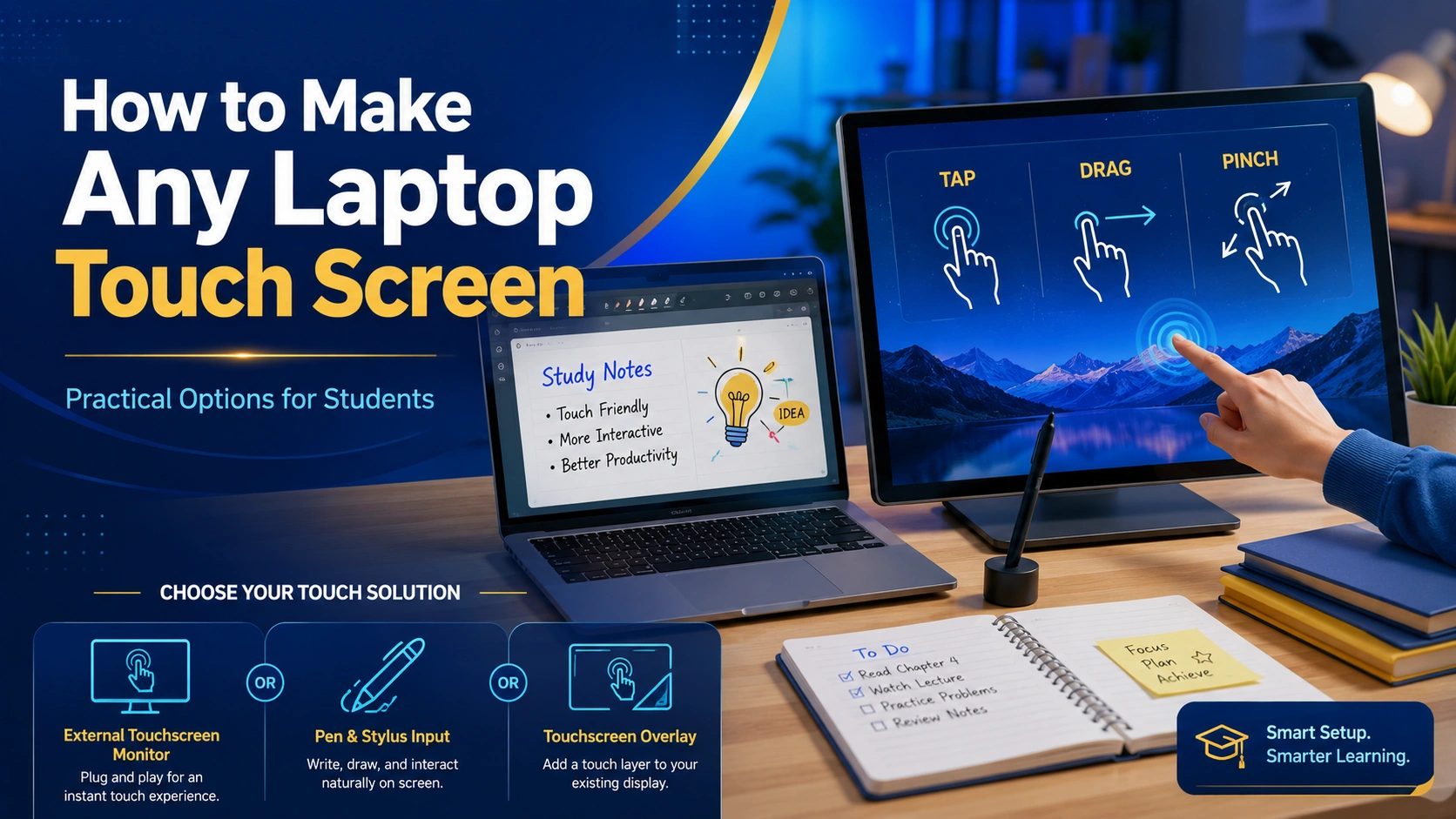
Quick Answer: To make a laptop touch screen, use an external touchscreen monitor, a touch overlay, a drawing tablet, or a tablet-as-second-screen setup. Replacing the built-in screen is rarely worth it unless the laptop model officially supports a touchscreen panel.
If you’re wondering how to make any laptop touch screen, you’re probably trying to make schoolwork, online classes, note-taking, drawing, or homework practice feel more natural. I get the appeal. Tapping, dragging, writing, and zooming can feel easier than fighting a tiny trackpad during a long study session.
Here’s the honest answer: most laptops can be made touch-friendly, but not every laptop can have its original display magically changed into a true touchscreen. The right solution depends on your laptop, budget, school rules, and how you plan to use touch for learning.
What “Making a Laptop Touch Screen” Really Means
When people search for how to make any laptop touch screen, they usually mean one of three things. They want to tap the screen like a tablet, write on the screen with a stylus, or add a second touch display for school tasks. These are different goals, and mixing them up can lead to wasted money.
A laptop screen needs special hardware to sense touch. Software alone can’t turn a normal non-touch display into a touchscreen. A touchscreen needs a digitizer layer, the correct cable connection, controller support, and operating system recognition. That’s why downloading a “touchscreen app” won’t make a regular screen respond to your finger.
In my experience writing education technology guides, beginners often skip the boring compatibility checks. They see a short video, order a cheap part, and then find out their laptop has no internal connector for touch. A teacher, tutor, parent, or experienced learner usually checks the purpose first: Is this for handwriting math steps, annotating PDFs, drawing diagrams, using online lessons, or helping a child stay engaged?
Note:
The safest mindset is this: you are not making the original screen touch by magic. You are adding touch input through hardware that your laptop can recognize.
Who This Guide Is For
This guide is mainly for students, parents, adult learners, homeschool families, and education product buyers in the United States. It can also help teachers and tutors who want a simple touch-friendly setup for explaining lessons, marking digital worksheets, or modeling math steps on a shared screen.
Middle school and high school students may want touch for note-taking, drawing science diagrams, or using interactive learning platforms. College students may want it for PDF annotation, online textbooks, design work, or lecture notes. Adult learners may want a more comfortable setup for video courses after work. Parents may want a setup that helps a child work through reading apps, spelling practice, or digital math manipulatives without turning study time into a wrestling match with the mouse.
For younger children, touch can be useful, but parents should keep the setup simple and supervised. A messy kitchen table, a charger stretched across the floor, and a wobbly external screen can turn a good idea into a frustrating evening. For older students, the main concern is usually whether the tool actually helps learning or just becomes another gadget.
Best Ways to Add Touch to a Laptop
The best method depends on your goal. A student who wants to annotate biology diagrams does not need the same setup as a child using elementary reading games. A college design student may need pressure-sensitive pen input, while a parent helping with online homework may only need basic tap and drag.
For most education users, an external touchscreen monitor is the cleanest answer. It keeps the laptop intact, works well on a desk, and is easier to replace later. A drawing tablet is often better for students who mainly want handwriting. Replacing the internal screen is usually the riskiest path.
How It Works: The Simple Hardware Explanation
A touchscreen sends two signals to your laptop. One signal is the picture, usually through HDMI, USB-C, DisplayPort, or another video connection. The second signal is touch input, often through USB. That means a portable touchscreen may need both a display cable and a USB cable before it works correctly.
Windows laptops usually handle external touchscreens well when the correct drivers are available. You can review Microsoft’s official guidance on touch gestures through Microsoft Support. Chromebooks and MacBooks can be more limited depending on the device, the accessory, and the app. For students using school-managed devices, settings may also be locked by the school district.
If your laptop has USB-C with video output, setup may be neat. If it only has HDMI and USB-A, you may need two cables. If it has older ports or weak power output, you may need a powered monitor or adapter. This is why “any laptop” has limits. The idea behind how to make any laptop touch screen is practical compatibility, not a one-size-fits-all trick.
Warning:
Do not open a laptop screen assembly unless you know the exact model, panel type, cable layout, and warranty risk. For most students and families, internal screen replacement is not the beginner-friendly option.
Step-by-Step Guide to Choosing the Right Setup
Before you buy anything, slow down and match the tool to the learning task. I’ve seen students buy expensive accessories and still avoid studying because the setup feels awkward. A better plan starts with the actual use case.
Write down the learning goal. Is the student tapping quiz answers, marking PDFs, drawing graphs, writing equations, or presenting lessons? One clear goal prevents random buying.
Check the laptop ports. Look for USB-C with display support, HDMI, DisplayPort, USB-A, and available charging ports. A laptop used all day for school may need power while the touch device is connected.
Check the operating system. Windows, ChromeOS, and macOS handle touch accessories differently. School-managed Chromebooks may block drivers, apps, or display settings.
Choose the simplest tool that solves the problem. For handwriting, a pen tablet may beat a touchscreen monitor. For younger learners, a larger touch monitor may feel more natural.
Test with one real assignment. Open a worksheet, lesson video, PDF, drawing app, or learning platform. If the setup helps the student work with less friction, it’s doing its job.
Touch Setup Decision Path
Choose an external touchscreen monitor or compatible tablet display.
Choose a pen tablet, drawing tablet, or touch monitor with stylus support.
Try a tablet you already own, a used monitor, or a basic pen tablet.
Ask the school or district before installing apps, drivers, or accessories.
Grade, Age, and Skill-Level Fit
A touch setup can support different learners, but the best choice changes by age. Elementary students often need simple, durable, parent-guided tools. Middle school students may benefit from touch for interactive assignments, but they also need boundaries so the device doesn’t become a distraction. High school and college students usually care more about note-taking speed, PDF annotation, and multitasking.
For ESL or ELL learners, touch can help with vocabulary cards, pronunciation apps, and visual matching tasks. For learners with reading difficulty, larger touch controls may reduce frustration. For focus challenges, touch can help only if the study routine is clear. A touchscreen with ten distracting apps open is still a distraction.
Tip:
Try one school task before changing the whole study setup. A single real worksheet or note session tells you more than a product page ever will.
Safety, Privacy, and School Rules
If this laptop is used for school, check school policy before installing display apps, remote-control tools, drivers, or account-based screen-sharing software. Some U.S. school districts manage student devices and may block unknown apps for privacy and security reasons. Families can also review general student privacy information from the U.S. Department of Education’s Student Privacy Policy Office.
For a personal laptop, privacy still matters. A tablet-as-second-screen app may ask for local network access, account login, screen recording permission, or device pairing. That can be fine when the tool is reputable and correctly configured, but students should not install random utilities just because a video promised an instant touchscreen.
Integrity and School Policy Note:
Touch tools should support learning, not bypass school rules. Don’t use extra screens, remote apps, hidden devices, or annotation tools during tests unless the teacher, testing platform, or school policy clearly allows them.
Self-Check: How to Know the Setup Is Working
Here’s the thing: a touch setup is successful only if it helps learning. It’s not successful just because it looks cool on the desk. After a week, the student should feel less friction during school tasks. Notes should be easier to mark. Math work should be easier to explain. Online lessons should feel smoother, not more confusing.
Progress Check:
Good signs include fewer missed clicks, faster worksheet completion, clearer handwritten notes, better diagram practice, and less frustration during online lessons.
Warning signs include sore wrists, constant cable problems, screen lag, more distraction, skipped assignments, or a student saying, “It’s too annoying to set up.”
A parent or tutor should watch the routine, not just the device. Is the learner starting faster? Are they saving work correctly? Can they explain what they changed in their notes? If the answer is no, the setup may need a simpler tool, fewer apps, or a clearer study process.
Copyable Setup Checklist
Use this checklist before buying anything. It works well for parents comparing options, high school students planning a study desk, or college students trying to improve digital note-taking without overspending.
Touch Laptop Setup Checklist
1. My main learning task is: ________________________________
2. My laptop operating system is: Windows / ChromeOS / macOS / Other
3. My available ports are: USB-C / HDMI / USB-A / DisplayPort / Other
4. I need: finger touch / stylus writing / drawing / PDF marking / second screen
5. My budget range is: low / mid / higher
6. This is a personal device or school-managed device: __________________
7. I will test it with this real assignment: ________________________________
Honestly, that last line matters most. When a student tests the setup with a real assignment, the truth shows up fast. A setup that helps with one actual homework routine is better than an expensive setup that never gets used.
Common Problems and Fixes
Even when you understand how to make any laptop touch screen, setup problems can happen. Most issues come from cable confusion, driver limits, display settings, or unrealistic expectations.
Common Mistakes to Avoid
Buying Before Checking Ports
A touch monitor may need USB-C video, HDMI, USB power, or a separate adapter. Check first so the desk doesn’t turn into a cable puzzle.
Expecting Software to Add Touch
Software can help with gestures or drawing, but it cannot make a normal screen sense your finger without touch hardware.
Ignoring Study Habits
A touchscreen won’t fix weak planning. Students still need folders, saved files, clear due dates, and a quiet study routine.
Skipping Accessibility Settings
Larger text, zoom, contrast, captions, and keyboard shortcuts may help as much as touch. Chromebook users can review accessibility options through Google Chromebook Help.
Optional Product Ideas
These tools are optional. Choose based on the learner’s age, routine, budget, school rules, and actual study needs. The goal is not to buy the most impressive gadget. The goal is to make learning smoother.
Portable Touchscreen Monitor
Benefit: Adds a touch display for online lessons, PDF annotation, tutoring, and desk-based homework.
Honest fit note: Best for students who have enough desk space and a laptop with compatible video and USB connections.
Drawing Tablet for Notes and Math
Benefit: Helps students write equations, mark diagrams, and explain steps during tutoring or online class.
Honest fit note: Best when handwriting matters more than finger tapping directly on the laptop screen.
When to Ask for Help
Ask a teacher, tutor, parent, school tech office, or academic advisor if the device is school-managed, if the setup is for testing, or if the student needs support beyond basic convenience. Also ask for help if the learner has ongoing reading, attention, vision, motor, or access challenges. Touch can support learning, but it should not replace proper school support.
If a student is preparing for exams, using online homework systems, or completing graded assignments, check the teacher’s rules before using extra screens or third-party tools. For homeschool families, device choices are flexible, but state rules for instruction, records, and assessment can vary. For college students, accessibility offices and academic advisors can often explain what technology is allowed in class or testing spaces.
So, when someone asks me how to make any laptop touch screen, my practical answer is this: choose the least complicated hardware that supports the learning task, test it with one real assignment, and respect school rules.
FAQ
Can I really learn how to make any laptop touch screen?
You can make many laptops touch-friendly with external hardware, but you usually cannot turn the original non-touch screen into a true touchscreen with software alone.
What is the easiest way to add touch to a laptop for schoolwork?
For most students, the easiest option is an external touchscreen monitor or a drawing tablet, depending on whether they need finger touch or handwriting support.
Can an app make my laptop screen touch sensitive?
No. An app may add gestures, drawing tools, or second-screen features, but touch sensitivity requires hardware that can detect touch input.
Is a touchscreen useful for online learning?
It can be useful for annotations, diagrams, drag-and-drop activities, and younger learners, but it works best with a clear study routine and limited distractions.
Should I replace my laptop screen with a touchscreen panel?
Usually no. Internal replacement can be expensive, risky, and model-specific. Most students are better served by an external touchscreen or pen tablet.
Do school rules matter when adding a touchscreen setup?
Yes. If the laptop is school-managed or used for tests, ask the teacher, school tech office, or district before installing apps, drivers, or extra display tools.
Final Thoughts
If your goal is how to make any laptop touch screen for learning, don’t chase the most dramatic solution. Start with the study task, check compatibility, protect privacy, and choose a tool that makes schoolwork easier. A simple external touchscreen or drawing tablet is often more useful than a risky internal upgrade. And when school rules, testing, privacy, or accessibility needs are involved, ask the right teacher, tutor, parent, school office, or advisor before making changes.
