
By Michael Hayes
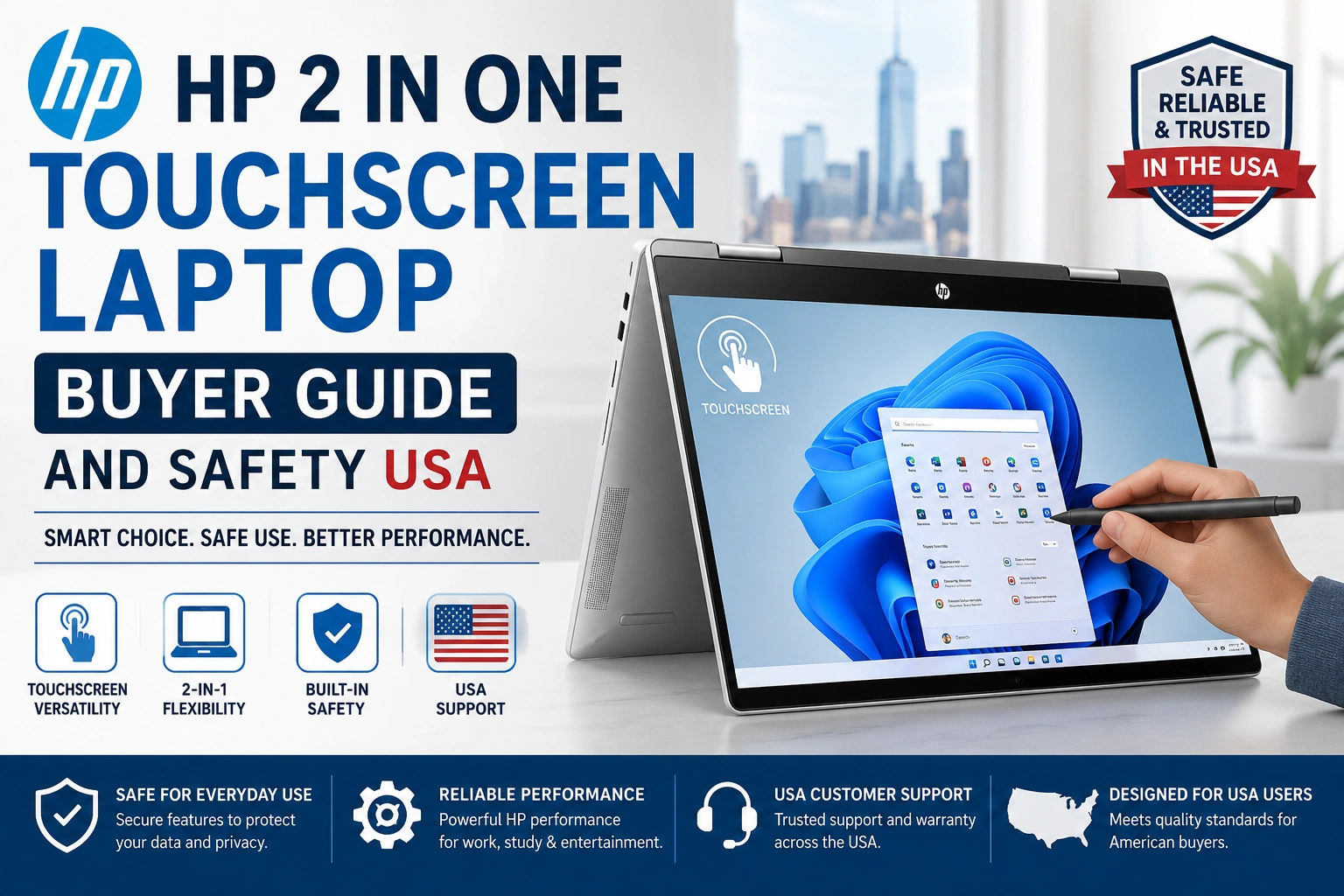
Quick Answer: An HP 2 in one touchscreen laptop is best for buyers who want a Windows notebook that can also work in tent, stand, or tablet mode. Choose by exact model, processor, RAM, SSD, display, hinge feel, pen support, ports, warranty, and return policy.
Buying an HP 2 in one touchscreen laptop can be confusing because HP uses several convertible names, including Pavilion x360, Envy x360, Spectre x360, OmniBook Flip, and EliteBook Flip. The best choice depends on whether you need school notes, remote work, drawing, video calls, media, business security, or a simple family computer.
This guide focuses on USA buyers comparing HP convertible models by budget, processor, RAM, storage, display, battery expectations, keyboard, ports, touchscreen comfort, pen support, warranty, safe charging, and realistic daily use. It avoids treating every HP touchscreen 2-in-1 as the same machine.
HP x360 and Flip Touchscreen laptop Pen support Buyer safetyTrust and safety note: This article is for general educational and buyer-information purposes only. It does not guarantee performance, compatibility, durability, repair results, or product availability. It does not replace advice from a qualified technician, manufacturer, seller, or warranty provider. Readers should seek professional help for severe, worsening, unusual, persistent, overheating, battery, charging, or electrical issues.
What an HP 2 in one touchscreen laptop is best for
A convertible HP laptop works as a regular notebook and can also fold into touch-friendly modes. Laptop mode is best for typing. Tent mode can help with streaming or presentations. Stand mode can help during video calls. Tablet mode may help with reading, marking PDFs, or casual pen use.
An HP 2 in one touchscreen laptop applies well to students, home users, mobile workers, and people who want one Windows device for typing and touch. It may be less ideal for heavy gaming, advanced video editing, repair flexibility, or buyers who rarely touch the screen.
The main risk is buying the shape instead of the right configuration. A folding hinge does not fix weak RAM, tiny storage, a dim screen, poor ports, or unclear warranty coverage. A beginner should check the exact product number, processor, RAM, SSD, display, charger, and return policy. A more experienced buyer should also compare USB-C behavior, pen protocol, display brightness, upgrade limits, cooling expectations, and HP Care Pack options.
Comparison Table: HP Pavilion x360, Envy, OmniBook, Spectre, and EliteBook
Note: HP now presents many convertible models under x360 and Flip naming. Start with HP laptops and 2-in-1 PCs, then compare the exact model, configuration, warranty, and return terms before checkout.
How to choose the right HP touchscreen convertible
The right model starts with your daily apps. A student may need notes, browser tabs, video classes, PDF markup, and enough battery for a school day. A remote worker may need webcam quality, microphone clarity, keyboard comfort, docking, and monitor support. A home user may care more about screen quality, speakers, streaming, and simple charging.
If ignored, you may buy a stylish convertible that does not fit your routine. A 14-inch model is easier to carry and fold, while a 16-inch model is usually better for split-screen work and media. A bright OLED display can look excellent, but it may cost more and may be reflective in bright rooms. A budget model may be fine for writing, but not ideal for large creative files.
A beginner can make a list of five daily tasks and match specs to those tasks. A more advanced buyer should check processor generation, RAM capacity, SSD size, display type, port features, pen protocol, Wi-Fi version, and whether Windows Pro is needed.
The buying flow below helps you compare HP convertible laptops in a safe order.
List school, work, drawing, streaming, video calls, travel, or business-security needs.
Choose smaller for tablet comfort and larger for split windows, media, and a roomier keyboard.
Check processor, RAM, SSD, display brightness, ports, webcam, Wi-Fi, and pen support.
Confirm return period, regional model, serial-based warranty, charger, and protection options.
Use real apps, fold the hinge gently, test charging, join a call, and try touch before the return window ends.
If a model fails your task check, do not rely on the convertible design to make up for it. The laptop should match your routine first.
Product, Tool, and Specification Fit Table
Step-by-step buying and first-day setup
Before buying an HP 2 in one touchscreen laptop, treat it as a daily computer first and a tablet-style device second. The folding design is useful, but the machine still needs to run your apps, charge safely, store files, handle meetings, and fit your warranty needs.
Write down your daily apps. Include browser tabs, Microsoft Office, Google Workspace, school portals, remote work tools, video calls, note apps, drawing apps, and PDFs.
Pick the HP family. Pavilion x360 may fit tight budgets, Envy or OmniBook Flip may fit balanced everyday work, OmniBook Ultra Flip may fit premium buyers, and EliteBook Flip may fit business use.
Confirm the exact configuration. Similar names can hide differences in CPU, RAM, SSD, display, pen support, webcam, keyboard, charger, and ports. Save the product number before ordering.
Review warranty and seller terms. Check return period, HP warranty status, accidental damage options, restocking fees, and who handles support if the unit is open-box or refurbished.
Test early after purchase. Join a video call, type a long note, fold the hinge gently, test touch, check charging, and use the laptop in your normal room lighting.
Back up before major changes. Before resets, driver changes, operating system reinstall attempts, storage changes, or repair work, back up important files to a trusted location.
Tip: If you can test a display model in person, fold the hinge slowly, type one full paragraph, open a bright webpage, join a sample video call, and try touch input. I usually notice hinge feel, glare, and keyboard comfort faster than small spec differences.
Performance, display, battery, and pen expectations
An HP 2 in one touchscreen laptop can feel fast for daily work when it has a good processor, enough RAM, and enough SSD storage. Everyday tasks include web browsing, documents, email, PDF markup, streaming, video calls, and light creative work. Heavy gaming, large video projects, and demanding 3D work may need a different laptop class.
Display choice matters because touchscreen convertibles are often glossy. A glossy OLED panel can look vivid for media and art, but reflections can bother users in bright rooms. IPS displays may cost less and still be practical for documents. Battery expectations also vary by brightness, video calls, Wi-Fi, background apps, processor platform, and screen type. Do not treat advertised battery life as a promise for your exact day.
For Windows models, compare the laptop with Microsoft’s Windows 11 specifications. For HP warranty status, use the official HP warranty check with the device serial number.
This priority meter shows what often matters most when comparing HP touchscreen convertibles. It is a practical guide, not lab test data.
The lesson is simple: choose the configuration that fits your work first. Color, finish, and marketing names should come after app fit, display comfort, warranty, and safe charging.
Safe Laptop Routine vs Risky Laptop Routine Table
Ports, pen support, and accessory compatibility
Ports and pen support are easy to overlook. A USB-C port may support charging, display output, data, Thunderbolt, USB4, or only some of those features. A touchscreen may support finger touch but not every active pen. A dock may connect physically but fail to power displays the way you expect.
Beginners should check the HP product page, support document, and seller listing before buying hubs, pens, chargers, or docks. Experienced users should check USB-C features, power delivery, display output, pen protocol, docking support, and whether business features are needed.
For connector details, review USB-IF cable and connector guidance. For extra service coverage, HP explains official HP Care Services for PCs, including warranty and support options.
Warning: Do not use a charger, cable, dock, or adapter that sparks, smells burned, becomes unusually hot, or feels loose in the port. Stop using it and contact the seller, HP, warranty provider, authorized service center, or a qualified repair professional.
This safety path helps separate normal accessory setup from warning signs.
A pen needs pairing, a hub needs settings, or monitor output is unclear. Check HP support and Windows settings first.
The accessory fits but does not do the promised job. Confirm exact model support before buying another adapter.
Heat, sparking, burning smell, sudden shutdown, or loose charging is not normal. Stop using the part.
Use HP, seller, warranty, authorized service, or qualified repair support for severe, persistent, battery, charging, or electrical issues.
If the problem is only a setting, careful testing may help. If the problem involves battery, heat, smell, sparks, liquid, or port damage, do not keep experimenting.
Common problems and safer fixes
If your HP 2 in one touchscreen laptop has problems, the cause may be simple or serious. Common issues include screen glare, pen confusion, weak battery life, slow performance, touch errors, loose hinges, charging trouble, overheating, or storage pressure. Start with safe checks: restart, update through normal settings, close unused apps, lower brightness, check storage, and test one accessory at a time.
Do not open the laptop, replace internal batteries, force a hinge, or use unknown chargers as beginner fixes. For performance or software troubleshooting, back up files before resets, driver changes, operating system reinstall attempts, or service work.
Problems vs Possible Reasons Table
This warning dashboard shows signs that should stop normal use and move you toward support.
Screen lifting, case bulging, sudden shutdowns, or extreme heat can point to a serious issue. Stop using the laptop and seek support.
Sparks, burning smell, buzzing, or a loose charging connection should not be ignored. Do not keep testing the charger.
Cracking sounds, uneven movement, or screen wobble can worsen with convertible use. Contact support before forcing the hinge.
Missing files, failed updates, or storage errors need backup first. Do not reset or reinstall without saving important work.
Safety Note: HP advises discontinuing notebook use and disconnecting AC power if battery swelling is noticed. Do not open the laptop, replace internal batteries, force a loose port, or bypass charging warnings. Check HP’s battery swelling support page and contact qualified support for battery concerns.
What careful buyers check that beginners often miss
Careful buyers look past the 2-in-1 label. They compare the exact product number, processor platform, RAM, SSD, display brightness, webcam, keyboard backlight, pen support, charger, warranty, and seller reputation. They also check whether the laptop is new, refurbished, open-box, or a marketplace configuration with upgraded parts.
They also notice comfort details. A glossy OLED display can look beautiful but may reflect bright windows. A large convertible may be great on a desk but heavy as a tablet. A budget model may be good for class notes but less ideal for long creative sessions. Choose an HP 2 in one touchscreen laptop if the trade-offs match your routine. Avoid it if you mainly want gaming power, repair flexibility, or the lowest possible purchase price.
The dashboard below matches HP convertible types to realistic routines.
Look for keyboard comfort, webcam quality, battery expectations, and pen support. Test PDF markup and note apps before a semester starts.
Screen quality, speakers, storage, and easy charging matter most. Check glare if the laptop will sit near windows.
Prioritize webcam, microphone, ports, Wi-Fi, keyboard, and external monitor support. Business users should check Windows Pro and warranty options.
Check pen compatibility, screen quality, palm rejection, and app support. A compatible pen matters more than a vague touchscreen label.
Mistake vs Better Choice Table
When to contact a technician or manufacturer support
When to contact a technician or manufacturer support: Get help if there is overheating, swollen battery signs, screen lifting, sparking, burning smell, sudden shutdowns, liquid damage, loose charging ports, cracked display, failed touch input, repeated charging failure, or hinge damage.
Also contact HP, the seller, or warranty provider before opening the device, replacing internal parts, reinstalling the operating system in a risky way, or using unverified chargers. This protects safety, data, and possible warranty coverage.
FAQ
Is an HP 2 in one touchscreen laptop good for students?
It can be a good student choice for notes, video classes, PDFs, web research, and documents. Check school software, RAM, storage, keyboard comfort, battery expectations, pen support, warranty, and return policy first.
What is the difference between HP x360 and HP Flip?
Both names refer to HP convertible laptop designs that can fold into different modes. HP has used x360 on older lines and Flip on newer OmniBook and EliteBook models. Exact specs vary by model.
Does every HP touchscreen laptop support a pen?
No. Touchscreen support does not always mean active pen support. Check the exact HP model, product number, compatible pen list, and pen protocol before buying a stylus.
Should I choose Intel, AMD, or Snapdragon in an HP convertible?
Choose by your apps, battery needs, ports, price, and compatibility. Intel and AMD models are common for Windows apps, while Snapdragon models can offer strong battery life but need app compatibility checks.
Is a 14-inch or 16-inch HP 2-in-1 better?
A 14-inch model is usually easier to carry and use in tablet mode. A 16-inch model may be better for split-screen work, media, and larger keyboards, but it can feel heavy when folded.
What specs matter most in an HP touchscreen 2-in-1?
Processor, RAM, SSD storage, display quality, hinge feel, keyboard comfort, webcam, ports, Wi-Fi, battery expectations, pen support, warranty, and return policy matter most for daily use.
When should I contact HP, the seller, or a technician?
Contact support for overheating, swollen battery signs, sparking chargers, burning smells, liquid damage, loose ports, hinge damage, display failure, sudden shutdowns, or unclear warranty coverage.
Final Thoughts
An HP 2 in one touchscreen laptop can be a practical choice when the exact model, specs, display, hinge, keyboard, pen support, ports, warranty, return policy, and care routine fit your needs. Check compatibility and support before buying. For severe, unusual, persistent, overheating, battery-related, charging-related, hinge-related, screen-related, or electrical issues, contact HP, the seller, warranty provider, authorized service center, or qualified repair professional.
